
EntomoLabels export and import #
ENTOMONE creates a CSV file from selected records that can be imported into EntomoLabels and used in its label templates. Exporting does not modify records or Database data.
Exporting a file from ENTOMONE #
- Open the record list and select the records intended for labelling.
- Open Actions and select EntomoLabels.
- In the Export to EntomoLabels CSV dialog, keep the suggested file name or enter your own.
- If needed, enter batch values for Collector, Determiner, and Preparation.
- Select Download CSV and save the file. Cancel closes the dialog without downloading a file.
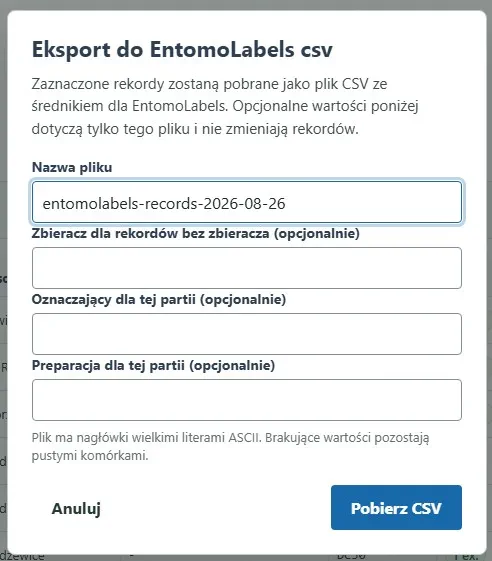
The Collector value is used only for records that do not have their own collector. Determiner and Preparation apply to the entire exported batch. Values entered in this dialog are written only to the downloaded CSV and are not saved in ENTOMONE records.
CSV contents #
The file uses UTF-8 encoding, a semicolon separator, and uppercase ASCII headers. The most important columns for EntomoLabels templates are:
| Column | Contents |
|---|---|
FAMILY | the effective family resolved by ENTOMONE, including CoL XR mapping |
GENUS | genus, for example Argynnis |
SPECIES | species epithet and optional subspecies, for example laodice laodice |
TAXON | complete scientific name |
AUTHOR | scientific-name authorship when available |
COUNTRY, PLACE, SITE, UTM | collecting locality data |
LEGIT, DET, PREP | collector, determiner, and preparation |
PLANT, QTY, SEX, NOTES | plant, specimen count, sex, and notes |
GENUS and SPECIES are separate because the standard EntomoLabels template places them in separate fields. TAXON supports custom templates that use the complete scientific name.
Importing the CSV into EntomoLabels #
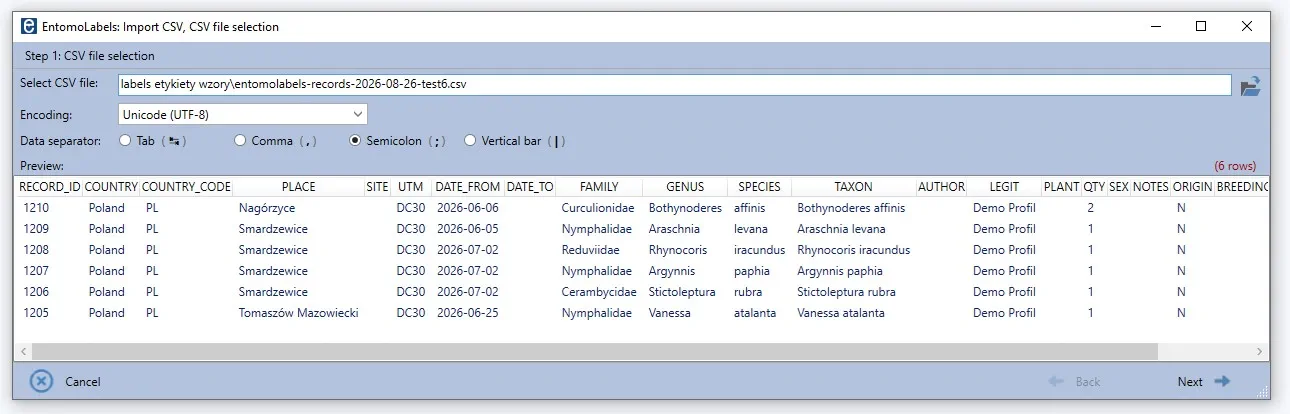
- Start a CSV import in EntomoLabels and select the file downloaded from ENTOMONE.
- Set Encoding to Unicode (UTF-8).
- Select Semicolon (;) as the data separator.
- Review the table preview, especially
FAMILY,GENUS,SPECIES,COUNTRY,PLACE,UTM, andLEGIT. - If the columns are recognised correctly, select Next.
Mapping columns to the template #
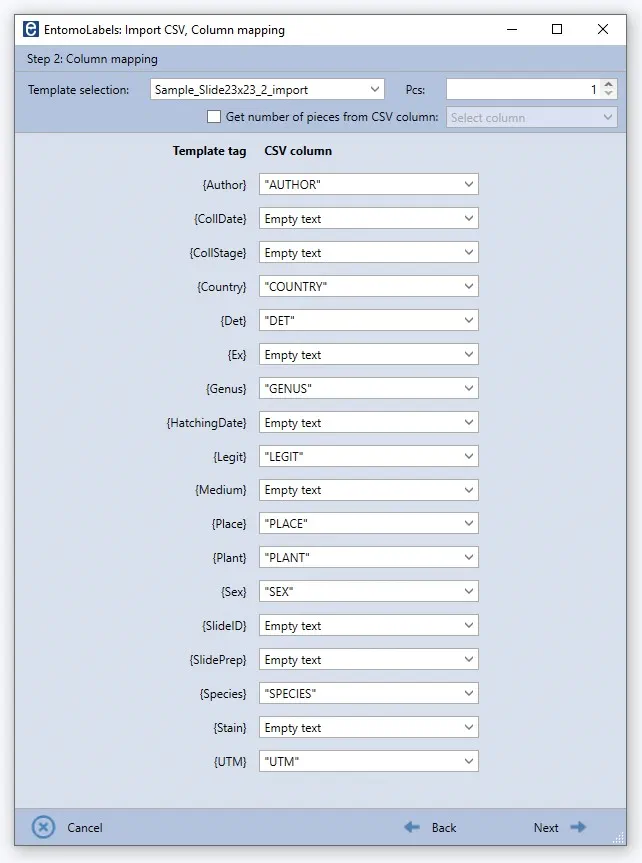
In the Column mapping step, select a label template and map its tags to CSV columns. For the standard template, use mappings including:
| Template tag | CSV column |
|---|---|
{Author} | AUTHOR |
{Country} | COUNTRY |
{Det} | DET |
{Genus} | GENUS |
{Legit} | LEGIT |
{Place} | PLACE |
{Plant} | PLANT |
{Sex} | SEX |
{Species} | SPECIES |
{UTM} | UTM |
Tags that are not needed by a template may remain set to Empty text. After reviewing the mapping, select Next.
Reviewing the labels #
Review the label preview before printing. The genus and species epithet should appear on separate lines when the template is designed that way. Other content and the number of labels depend on the selected template and mapped columns.
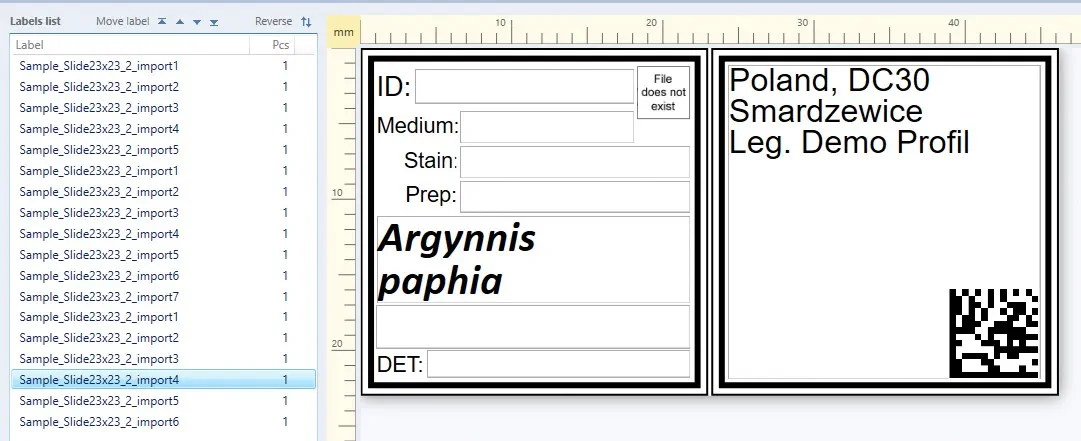
If only the genus is visible, verify that {Genus} maps to GENUS and {Species} maps to SPECIES. If columns are shifted or not recognised, return to file selection and confirm UTF-8 encoding and the semicolon separator.